Key takeaways
- Learn which Android battery widgets show charge, health, temperature and drain at a glance, and how to set up the built-in widget and the best apps.
A battery widget answers one question without opening a menu: how much charge is left, and is anything draining it now. That sounds trivial until you are out for the day, your phone is the map, the camera, and the payment card, and you keep unlocking the screen to check the little icon in the corner. The real decision is not which app has the prettiest circle. It is which widget gives you information you will act on, in a size that fits your home screen, without itself becoming one more thing running in the background all day.
This guide is for Pixel and Samsung owners with a battery widget built in, for people who wear earbuds or a watch and want every device on one tile, and for anyone who suspects an app is quietly eating the battery. The widgets below come from Google Play listings and Android documentation, not a shopping catalogue, because battery widgets are software, and the right choice depends on your phone and your habits.
As an Amazon Associate we earn from qualifying purchases.
How to Choose
Start With the Built-In Widget Before Installing Anything
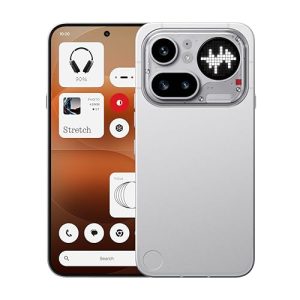
Most Android phones already ship with a battery widget, and for many people it is the only one they need. On Pixel phones running Android 12 or later, the Battery widget shows the phone charge level plus connected devices that report over Bluetooth or Fast Pair, such as earbuds and watches. Samsung phones have a similar Battery widget that shows Galaxy devices together on one tile. Adding it takes seconds: press and hold an empty spot on the home screen, tap Widgets, tap Battery, and drag the tile where you want it. Try the built-in option for a week before installing anything else, because a third-party app adds complexity without value when all you want is a glanceable charge level.
Decide What You Actually Want to See
A widget is only useful if it shows the number you care about. Some people only want the charge level in large type. Others want time remaining, an estimate based on recent use that changes as usage changes. A smaller group wants temperature, voltage, and charge current, usually to compare chargers and cables or watch a phone that runs warm. Then there is battery health, which differs from charge level: health estimates how much capacity remains compared with when the battery was new, and it only becomes meaningful after weeks of logged charging sessions. Before downloading, note the one or two readings you would check daily. If the list is just charge level and connected devices, the built-in widget wins.
Check How Often the Widget Updates
A widget that updates every minute is reassuring, and a widget that updates every few seconds is a drain in its own right. Each refresh wakes the app, reads the battery state, and redraws the tile, so most widgets let you choose a refresh interval. The sensible default is the slowest setting that still feels current, often five minutes for a simple charge display. Be wary of widgets that promise live, second-by-second readings with graphs and animations, because the display costs energy. After installing a new widget, check Settings and then Battery a day later to see where the widget app sits in the usage list. If it appears near the top, lengthen the refresh interval or remove the widget.
Match the Widget to Your Phone and Habits
Android is not one phone. Menu names, permission screens, and background rules differ between Pixel, Samsung, and other manufacturers, and a widget that works on one phone can be stopped in the background on another. Some manufacturers restrict background activity aggressively, which can freeze a widget at an old reading until you open the app again. Before settling on a widget, check that it resizes cleanly on your launcher, that its colours stay readable on your wallpaper in light and dark themes, and that it shows no advertising on the home screen itself. Also consider the lock screen: a widget there is handy for a quick glance, but one showing usage history is information anyone holding the phone can see.
Battery Widgets Worth a Look
The Built-In Battery Widget
The built-in widget is the starting point on Pixel and Samsung phones, and it is free, maintained by the phone maker, and uses no extra background service beyond the system itself. On Pixel phones it covers the phone and connected Bluetooth devices, and on Samsung phones it covers Galaxy earbuds, watches, and tablets in the same view. Its weakness is depth: it shows charge levels and little else, with no temperature, no health estimate, and no history. That is a fair trade for most people, because the widget never needs updating, never shows an advertisement, and never asks for a permission the system does not already hold. Keep it if your only question is how much charge remains.
Battery Widget Reborn
Battery Widget Reborn is the long-running favourite for people who want more than the built-in tile without a heavy monitoring app. Its main output is a circular widget that shows the charge level at a glance, resizable from a small one-by-one tile up to a larger tile with a charge graph. Behind the widget it reports temperature, voltage, health data, and charge and discharge charts, plus shortcuts to power-related settings such as Wi-Fi, Bluetooth, and background sync. The app is free with advertising, with a paid edition that removes ads. Its limitation is honest: a dashboard widget makes battery information easier to see, but the widget itself does not measurably save battery. Choose it when you want a tidy, customisable tile and occasional detail, not when you expect the app to extend battery life on its own.
AccuBattery
AccuBattery is the choice for people who care about long-term battery health rather than the charge level right now. It estimates battery capacity by measuring charge sessions over time, tracks wear, and offers alarms that sound when the phone reaches a chosen charge level, which some people use to avoid leaving the phone plugged in at full charge for long stretches. Its widget shows the readings the app has collected, and the estimates improve with repeated data, though they can vary by device and battery gauge. The app was last updated in November 2025 according to recent listings, so check compatibility with your phone and Android version before relying on it. Choose AccuBattery when you want a health record measured over months, and accept that its numbers are estimates, not laboratory measurements.
Battery Guru
Battery Guru focuses on detailed health and thermal statistics, reporting estimated capacity, health, charging current, temperature, charge cycles, and wear, with history views that show how those readings change over time. Its widget puts the most important of those numbers on the home screen, which suits people who charge in the car, on a wireless pad, or from different chargers and want to see whether one setup runs hotter than another. The app needs background operation to keep logging, so it needs permission to run in the background, and some manufacturers restrict that, which can interrupt logging and session detection. Choose Battery Guru when temperature and charging behaviour matter to you, and check after a few days that its logs are actually being recorded on your phone.
GSam Battery Monitor
GSam Battery Monitor is the diagnostic tool of the group, and its widget is built for hunting down the app that drains the battery. It reports CPU use, sensor use, wakelocks, and wake time, and its widget can be configured to show time remaining or time since the last charge, which gives a realistic sense of when the phone will need a charger. The interface is more technical than the other options here, and the deeper statistics may need extra permissions or setup through ADB, the Android developer bridge, on some phones. Manufacturer differences can also make its drain rankings approximate rather than exact. Choose GSam when you have a specific drain problem to investigate, not when you only want a pretty charge circle.
Ampere
Ampere does one narrow job well: it shows estimated charging and discharging current, which makes it useful for comparing chargers and cables. Plug the phone into one charger, note the reading, then try another cable or charger under similar conditions and compare. Its widget keeps that reading visible while charging, so you can see at a glance whether a charger is delivering what you expect. The readings are estimates for relative comparison on one phone, not guaranteed milliamp measurements, and they shift with screen state, Wi-Fi, GPS, and whatever the phone is doing at the time. Choose Ampere when you are sorting out a slow charger or a suspect cable, and run comparisons under consistent conditions for results you can trust.
Which One Fits Your Situation
You Just Want a Quick Glance at the Charge Level
Start with the built-in Battery widget and stop there. It is already on the phone, it costs nothing extra, it never shows an advertisement, and it shows the one number you check most. Pick the smallest size that stays readable, place it where your eye lands when you unlock the phone, and turn on the battery percentage in Settings so the status bar agrees with the widget. If you later want temperature or history, add a second widget then.
You Own Earbuds and a Watch
The built-in widget earns its place because it shows the phone and connected devices together. On Pixel phones, devices that report battery over Bluetooth or Fast Pair appear in the widget, and on Samsung phones, Galaxy earbuds, watches, and tablets appear together. Before installing a third-party app, check whether your earbuds and watch already appear in the built-in widget. If a device is missing, check that it is paired and its companion app is allowed to run in the background.
You Want to Know Why the Battery Drains Fast
Install GSam Battery Monitor and give it a few days of normal use before judging anything. Its widget showing time remaining or time since the last charge gives a daily baseline, and the app behind it points at the apps, sensors, and wakelocks responsible for the drain. Check the usage list in Settings first, because the system already names the heaviest apps. If one app stands out, restrict its background activity before installing anything else.
You Want to Protect Long-Term Battery Health
Use AccuBattery or Battery Guru, and think in months, not days. Both estimate capacity and track wear across charge sessions, and both need weeks of data before their health numbers settle. Set a charge alarm if you want a reminder to unplug, and keep Adaptive Battery and battery optimisation turned on. The most useful habit the widget supports is noticing patterns, such as a charger that always runs hot, and then changing that one habit.
Common Mistakes
- Installing three battery apps at once and comparing their numbers, when each one estimates differently and the disagreement means nothing on its own.
- Choosing a widget that refreshes every few seconds, then wondering why the widget app appears in the battery usage list.
- Trusting a single health estimate from a new install, when capacity estimates need weeks of charge sessions to settle.
- Ignoring the built-in widget and paying for a third-party app that shows the same charge level with more advertising.
- Treating a widget as a battery saver, when the widget only displays information and the saving comes from settings changes such as Adaptive Battery, Battery Saver, and restricting background activity.
Frequently Asked Questions
Do I need a third-party battery widget on Android?
Most people do not. Pixel phones running Android 12 or later and Samsung phones both include a Battery widget that shows the phone and connected devices, and that covers the daily question of how much charge remains. A third-party app is worth installing only when you want something the built-in widget lacks, such as temperature, charge current, per-app drain, or a health estimate tracked over months.
How do I add the battery widget to my home screen?
Press and hold an empty spot on the home screen, tap Widgets, tap Battery, and drag the widget to where you want it. On Pixel phones the widget is available on Android 12 and later, and on Samsung phones it appears under Battery in the widget picker. To resize it, press and hold the widget, drag the dots at its edges, then tap outside the widget when you are finished.
Can a battery widget drain the battery?
Yes, a little, and the amount depends on how often it refreshes. Each update wakes the app, reads the battery state, and redraws the tile, so a widget set to refresh every few seconds costs more than one that refreshes every few minutes. Use the slowest refresh interval that still feels current, and check Settings and then Battery after a day to see where the widget app sits.
Why does my battery widget show an old reading?
The widget app is probably being stopped in the background. Some manufacturers restrict background activity aggressively, which freezes the widget until the app is opened again. Open the app once to refresh it, then check its battery settings and make sure background activity is allowed and battery optimisation is not restricted for that app. If the reading still freezes, try the built-in widget, which runs as part of the system.
More from Amazon
Programs that pair well with the guide above. Offers and eligibility are set by Amazon and may change.
Free shipping on eligible items, Prime Video and more. Eligible new members can start with a free trial.
Start a Prime free trialAd-free music streaming. Eligible new subscribers can start with a free trial.
Try Music Unlimited freeA Prime membership for ages 18-24 with a trial period. Eligibility is set by Amazon.
See Prime for Young AdultsAudiobooks and podcasts to listen to on the go. Eligible new members can start with a free trial.
Try Audible freeAs an Amazon Associate we earn from qualifying purchases.