Key takeaways
- Blender: Cycles supports NVIDIA CUDA and OptiX on compatible hardware. Check the current Blender requirements and render-device settings; the fastest option depends on scene size and features used.
- V-Ray GPU and OctaneRender: Both have NVIDIA GPU workflows, but supported devices and features can differ by version. Confirm compatibility with the specific renderer version and plugins in your pipeline.
- Autodesk Maya and 3ds Max: A fast GPU helps interactive viewport work, but CPU, memory, drivers, and the renderer can be equally important. Look up the requirements for your renderer, such as Arnold or V-Ray, rather than buying solely for a viewport benchmark.
- Unreal Engine: Viewport responsiveness benefits from a capable GPU, while real-time ray tracing and large projects add memory pressure. Favor capacity if you regularly work with high-resolution assets and expansive scenes.
Best graphics cards for 3D rendering in 2026
The best graphics card for 3D rendering for most people is the NVIDIA GeForce RTX 5090 if your scenes need its 32 GB of VRAM and you can accommodate its price, power draw, and size; for a better balance of cost and capability, choose the GeForce RTX 5080 with 16 GB. If your work routinely exceeds 32 GB, consider a professional workstation GPU or a render setup that splits scenes across machines—more compute cannot compensate when a project does not fit in memory.
Ranked picks by workload
1. NVIDIA GeForce RTX 5090 — best for demanding GPU rendering
Its 32 GB of GDDR7 gives the 5090 the most room among these consumer picks for large textures, dense geometry, and complex scenes. CUDA and OptiX support make it a strong choice in renderers such as Blender Cycles, V-Ray GPU, and OctaneRender. OptiX can accelerate supported ray-tracing workloads, but results depend on the renderer, scene, and settings.
Our top picks

As an Amazon Associate we earn from qualifying purchases at no extra cost to you. Ratings are shown as listed on Amazon.
The trade-offs are substantial: the card draws roughly 575 W at its rated maximum graphics power, and partner models can be very large. Check case clearance, power-supply recommendations, connector routing, and airflow before buying. This is a specialist tool, not automatically the best value for simpler scenes.
2. NVIDIA GeForce RTX 5080 — best high-end balance
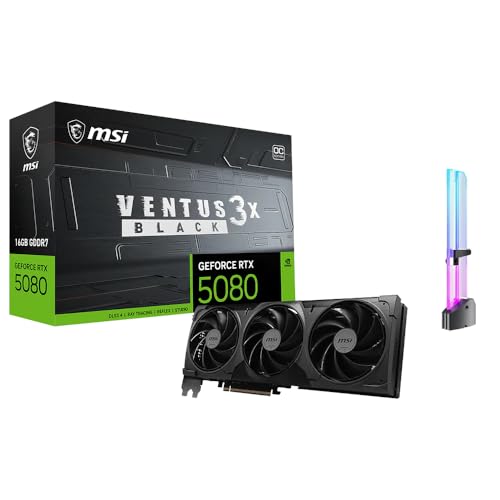
The RTX 5080 has 16 GB of GDDR7 and broad CUDA and OptiX compatibility. It suits freelancers and small studios whose projects fit comfortably in that capacity and who want strong viewport performance alongside GPU rendering. Its rated maximum graphics power is about 360 W, still demanding but easier to accommodate than the 5090.
The main compromise is memory capacity. A 16 GB card may render a scene quickly when it fits, but textures, geometry, render buffers, and other applications all use memory. If your typical projects already approach that limit, stepping up to a higher-capacity card—or simplifying or splitting scenes—may matter more than a modest speed increase.
3. NVIDIA GeForce RTX 5070 Ti — best for independent creators
With 16 GB of GDDR7, the RTX 5070 Ti offers a useful capacity for serious personal work without the 5090’s power and price extremes. It supports CUDA and OptiX, making it a practical option for Blender and other applications with NVIDIA GPU render paths. Its rated maximum graphics power is around 300 W.
It is a sensible fit for a mixed workload—rendering, modeling, and occasional gaming—provided projects fit in memory. Compare the total cost of a complete system, not just the GPU: a good power supply and well-ventilated case are part of the purchase.
4. NVIDIA GeForce RTX 5070 — best lower-cost CUDA option
The RTX 5070 has 12 GB of GDDR7 and rated maximum graphics power of about 250 W. It can be a capable entry into CUDA- and OptiX-based rendering, especially for product visualization, smaller scenes, and learning. Its lower capacity makes it less comfortable for large environments, high-resolution textures, and heavy simulations.
Choose it when your workload is known to fit, rather than assuming a faster GPU will solve every slowdown. If you mainly use CPU rendering or an application that favors another GPU platform, verify the software’s support before choosing a card.
5. NVIDIA GeForce RTX 5060 Ti 16 GB — best budget pick when memory matters
The 16 GB version of the RTX 5060 Ti is worth considering for budget-conscious artists who need more scene capacity than many lower-cost cards provide. Its rated maximum graphics power is about 180 W. It is slower than the higher-ranked cards, but extra VRAM can prevent out-of-memory problems on supported GPU renderers.
Do not confuse this model with the 8 GB version: the lower-capacity variant may be a poor match for memory-heavy 3D scenes even if the GPU name is similar. Check the exact product specification, since partner cards and regional availability vary.
Key specifications at a glance
| Graphics card | VRAM | Memory type | Rated maximum graphics power | Best fit |
|---|---|---|---|---|
| GeForce RTX 5090 | 32 GB | GDDR7 | About 575 W | Large scenes and demanding GPU rendering |
| GeForce RTX 5080 | 16 GB | GDDR7 | About 360 W | High-end work that fits in 16 GB |
| GeForce RTX 5070 Ti | 16 GB | GDDR7 | About 300 W | Creator workstation on a more controlled budget |
| GeForce RTX 5070 | 12 GB | GDDR7 | About 250 W | Smaller scenes and entry-level CUDA rendering |
| GeForce RTX 5060 Ti 16 GB | 16 GB | GDDR7 | About 180 W | Budget builds where capacity beats peak speed |
Power figures are reference specifications, not a guarantee of what every partner card draws. Board size, cooler design, fan behavior, and recommended system power vary by model. Confirm exact specifications with the card manufacturer before purchase.
Choose by application and project size
- Blender: Cycles supports NVIDIA CUDA and OptiX on compatible hardware. Check the current Blender requirements and render-device settings; the fastest option depends on scene size and features used.
- V-Ray GPU and OctaneRender: Both have NVIDIA GPU workflows, but supported devices and features can differ by version. Confirm compatibility with the specific renderer version and plugins in your pipeline.
- Autodesk Maya and 3ds Max: A fast GPU helps interactive viewport work, but CPU, memory, drivers, and the renderer can be equally important. Look up the requirements for your renderer, such as Arnold or V-Ray, rather than buying solely for a viewport benchmark.
- Unreal Engine: Viewport responsiveness benefits from a capable GPU, while real-time ray tracing and large projects add memory pressure. Favor capacity if you regularly work with high-resolution assets and expansive scenes.
CUDA and OptiX are NVIDIA technologies. AMD Radeon cards can be competitive in supported applications, but rendering support is software-specific and feature parity is not universal. If your paid workflow depends on a particular renderer, verify its current GPU support before considering a non-NVIDIA card.
Match the card to your situation
| Your situation | Practical choice | Reason |
|---|---|---|
| Learning, small scenes, tight budget | RTX 5070 or RTX 5060 Ti 16 GB | Lower system power; choose the 16 GB card when scenes are memory-heavy. |
| Freelance work with varied project sizes | RTX 5070 Ti or RTX 5080 | 16 GB plus CUDA/OptiX support, with more rendering headroom. |
| Large scenes and frequent GPU renders | RTX 5090 | Its 32 GB capacity reduces the risk of hitting a consumer-card memory ceiling. |
| Projects exceed 32 GB or need certified support | Professional workstation GPU or multi-machine workflow | Evaluate memory capacity, software certification, support, and total cost—not just speed. |
What the spec sheet won’t tell you
VRAM is a fit test, not a speed score. A scene may use more memory once textures, geometry, acceleration structures, and render buffers are loaded. Leave headroom for the operating system and other software. If the renderer runs out of GPU memory, it may fail, fall back to another device, or require a less convenient workflow.
Power and noise depend on the whole build. A higher-power card needs suitable power delivery and case airflow. Poor airflow can make fans run louder; a large cooler may help, but card dimensions and fan curves vary. Check case clearance and reviews of the exact board model. For quieter operation, a spacious case, clean filters, and a sensible fan curve can help more than choosing a GPU by brand alone.
Consider ownership costs. Keep dust filters and heatsinks clear, avoid sharply bending the power cable at the connector, and use a power supply that meets the card maker’s guidance. Drivers, renderer versions, and plugins can affect stability and performance, so verify your production pipeline after major updates rather than updating during a deadline.
Bottom line
Choose the RTX 5090 for the largest consumer-card memory capacity in this group and demanding CUDA/OptiX work. For a more balanced high-end build, the RTX 5080 or RTX 5070 Ti is a better starting point if 16 GB is enough for your scenes. On a tighter budget, compare the RTX 5070 with the RTX 5060 Ti 16 GB—and prioritize the latter’s memory capacity when projects are more likely to run out of VRAM than to need extra rendering speed.